Default
Safe Backup
Best for starting out. New Photos media is backed up to WebDAV, and deletes are ignored.- Uploads
- Yes
- Downloads
- No
- Deletes
- Never
 Biko Sync
iOS Photos / WebDAV / Safe Backup
Pair an iOS Photos album with your own WebDAV storage, pick a simple mode, and see exactly what Biko will do before anything changes. No sync anxiety required.
Choose your sync mode
Biko hides the technical sync levels behind the decisions people actually care about: back up, keep both sides together, or clean up with confirmation.
Default
Simple two-way
Needs review
The first mode is intentionally boring: it backs up new photos and refuses to delete anything.
Why Biko
Biko stays focused on one stressful job: moving iOS Photos albums to WebDAV storage you control, with a clear plan before anything changes.
Instead of chasing every file protocol, Biko keeps the setup narrow so NAS, Nextcloud, Synology WebDAV, and self-hosted storage feel approachable.
Biko does not require a vendor photo service or its own cloud. It connects to the server you choose and keeps the backup destination visible.
Uploads, downloads, skips, and delete reviews are shown before a run starts, so the safest choice is also the easiest one to understand.
Safe by default Safe Backup uploads new Photos media and refuses surprise deletes.
Plain modes Safe Backup, Keep Together, and Cleanup Sync map to real decisions.
Honest automation Background work is best effort, and destructive cleanup still waits for you.
App tour
The app keeps the everyday path short: connect storage, choose a Photos album, pick a mode, then let Biko explain each run in normal words.
Find the folder where backups should live.
Bind one Photos album to one remote folder.
See whether the album is backed up, paused, or needs attention.
Notifications, cache, and background work stay explicit.
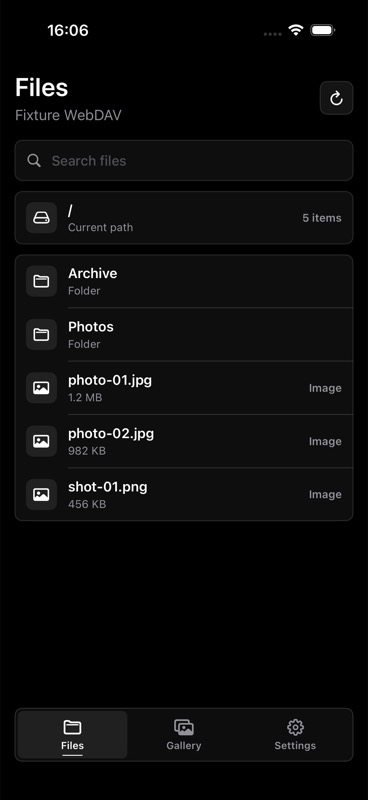
Pick the WebDAV folder you trust.
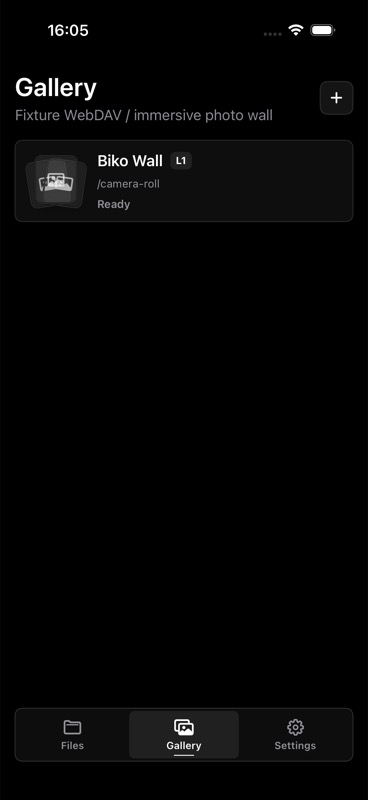
Albums show clear backup state at a glance.
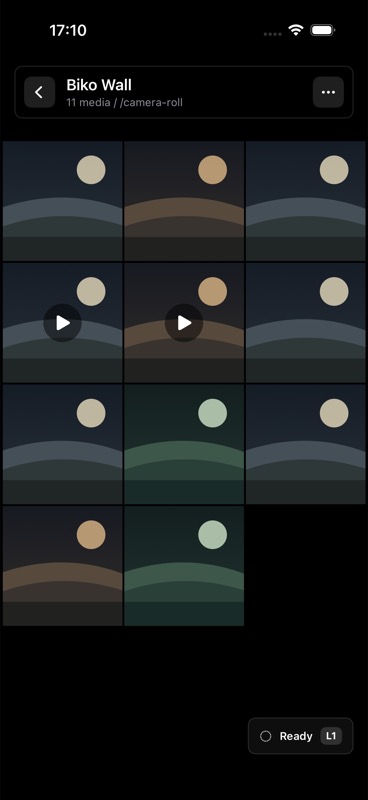
Sync now starts with a preview, not a surprise.
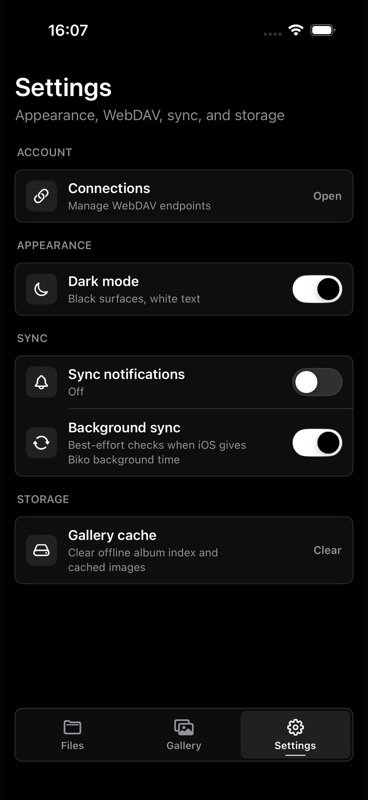
Cache, notifications, and background sync stay understandable.
Preview before action
Biko turns each run into a short checklist: what will upload, what will download, what will be skipped, and whether anything needs your review.
Safe Backup, Keep Together, or Cleanup Sync.
Photos album and WebDAV folder are checked before work is queued.
Uploads, downloads, skips, and review items are summarized first.
Unsupported media, permissions, conflicts, or waiting originals get clear reasons.
Cleanup Sync shows delete targets before any destructive action runs.
The album keeps its last good state so a failure does not feel like data loss.
Canceling the preview does not change local or remote media.
Friendly recovery
The common blockers are ordinary things: a wrong WebDAV path, limited Photos access, an iCloud original still downloading, or storage that is full.
Checks server URL, sign-in, folder read access, and upload access step by step.
Bad password, missing folder, no upload permission, TLS issues, and full storage get next steps.
Limited access is treated as a permission issue, not as an empty album.
If Photos is still downloading the original resource, Biko can skip it and let you retry later.
RAW, videos, Live Photo packages, and sidecars are skipped when the target cannot handle them.
Same-name files with different metadata are surfaced for review instead of being overwritten.
Remote organization
Simple presets keep remote storage tidy without asking users to learn path rules, regular expressions, or batch renaming.
Put backed-up files directly into the folder you selected.
Create one folder named after the Photos album.
Group uploads into simple YYYY-MM folders by photo date.
Biko keeps filenames stable and avoids overwriting same-name conflicts.
Automatic sync
iOS decides when background processing can run. Biko uses those chances, reports what happened, and leaves destructive review for you.
FAQ
Biko connects to any WebDAV server you trust, including NAS, Nextcloud, Synology, or other private storage.
No. Your data stays on the WebDAV server you configure.
Biko matches by filename basename. Same-name conflicts are skipped for manual review rather than overwritten.
Safe Backup and Keep Together never delete. Cleanup Sync can delete only after Biko shows a review and you confirm.
Yes. Changing mode or major filters starts the next run with a fresh plan so the new choice is clear.
You can keep uploads in the selected folder, create an album folder, or group files by month.
Biko uses your WebDAV server, previews sync work before it runs, and keeps already-loaded album views available when refresh fails.